
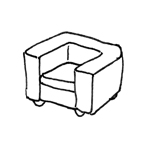
In the construction industry, the term "furniture" (also: furnishings, fixtures) refers to movable items of furnishings used indoors or outdoors (e.g., garden furniture). The term thus contrasts with immovable objects (real estate) that are permanently attached to the ground or to buildings.
This article covers the installation of furniture in offices, stores, apartments, or similar spaces, with the exception of fixtures connected to plumbing systems, such as bathroom fixtures and kitchen cabinets. These are described in separate articles (see articles: Plumbing, Kitchen).
BIM users have access to a vast number of online libraries of interior design objects—virtually every major manufacturer now offers object libraries for various BIM software platforms. As convenient as this may seem, using such objects also presents some challenges. Manufacturer objects often feature an extremely high level of geometric detail (especially in 3D)—which can lead to significant performance issues, particularly in larger projects. It is therefore generally recommended to work with abstracted elements and, for example, replace individual objects with more detailed elements for specific visualizations. (See article: Sensible Detailing)
Search terms: furnishings, furniture, living room, dining room, kitchen, bathroom, bedroom, room, table, chair, cabinet, bed, appliance, machine, warehouse, office, seating
At this stage, there is no need to create any furniture yet. To get an initial idea of the space required for furniture, you can place 2D elements consisting of simple 2D lines.
At this stage, there is no need to model any furniture yet. To estimate the space requirements, 2D elements consisting of simple 2D lines can be placed, as in the >Conceptual Preliminary Planning phase.
In this phase, furniture is modeled in 3D for the first time.
Presentation
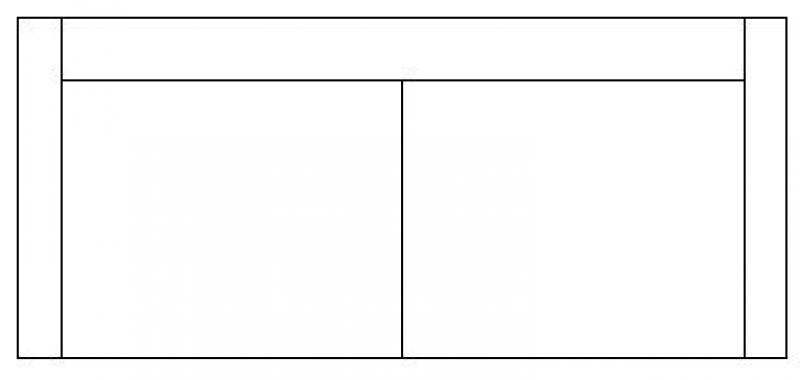
Floor plan
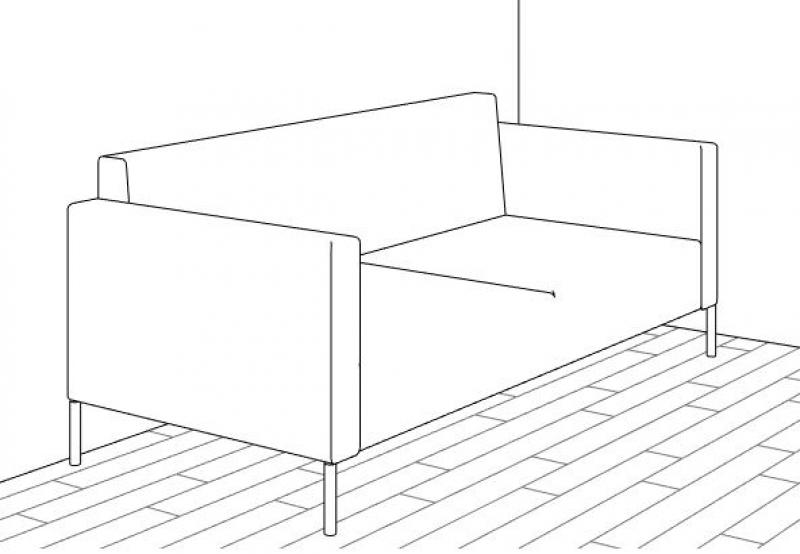
3D model
Features
In this phase, furniture is created. The necessary features are generated through the modeling or creation of the objects.
The following characteristics must be defined during this phase:
- General: Name (name of the piece of furniture)
- Dimensions: Geometry (width, depth, height, top edge height, etc.)
Labeling
At this stage, furniture is not yet labeled. Any labeling required at this stage is done using elements that include the necessary information, such as the name of the piece of furniture, geometric dimensions like width, height, and depth, or similar details.
Instructions
In Revit, furniture is created from families in the category of the same name and is placed using the >Architecture >Part >Place Part command. Since they do not belong to the system family palette but rather to the so-called external (i.e., “loadable”) families, they must be loaded from Revit Content as needed using the >Insert >Load Family command.
Furniture containing plumbing fixtures, such as kitchen cabinets with sinks or similar, is described in the section >Kitchen.
Furniture order:
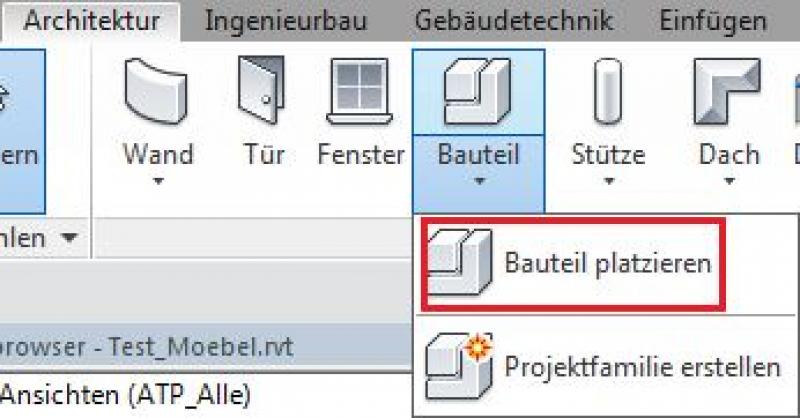
Command for loading furniture families:

Classification of furniture families:
The furniture content included with Revit is organized into various usage units. Specifically, these are:
- Office: cabinets, desks, chairs, sideboards, etc.
- Bedroom: Beds
- Living room: Shelves, cabinets, sofa, armchairs, tables, dressers, TV, etc.
- School: Chairs, seating arrangements
- Retail fit-out: refrigerated display cases, freezers, counters, shelves, etc.
Carpentry work:
In addition to the components mentioned above, Revit also includes the >Joinery category. The only difference between this category and the Furniture category is that the components of a joinery family are actually shown in cross-section within a building, whereas furniture is always shown from the outside, as in an elevation view.
For this reason, built-in furniture (essentially "fixed furnishings"—i.e., permanently attached to the building structure) is typically classified under "carpentry work," while movable furnishings are classified under "furniture." The following illustration illustrates the difference:
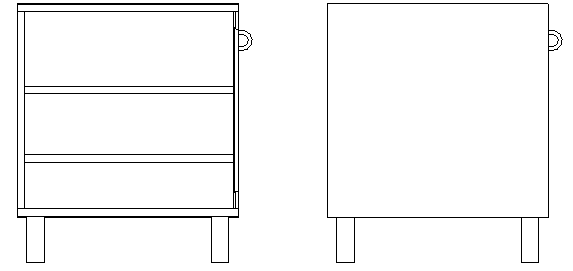
Carpentry: cut Furniture: from the outside
In this phase, furniture is enhanced with surface definitions (materials).
Presentation
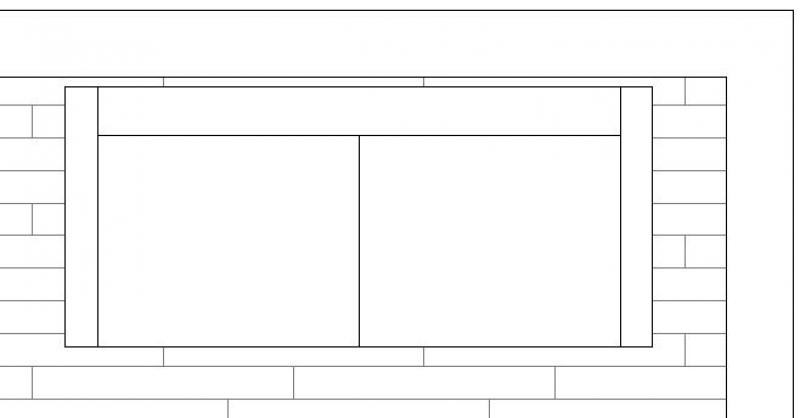
Floor plan
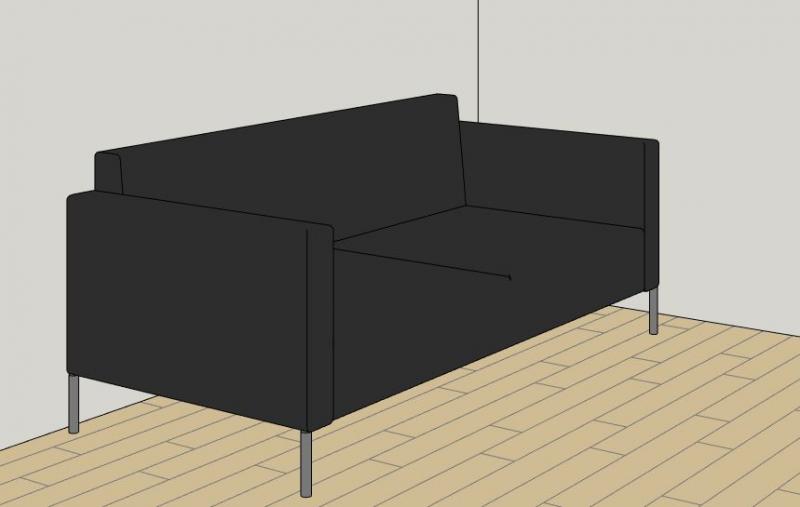
3D model
Features
The following features are also required in this phase:
- Materials: Surfaces
Labeling
Furniture is not labeled at this stage.
Instructions
To define surfaces (materials) in Revit, the corresponding parameters are filled in. The following illustration shows examples of various material assignments:
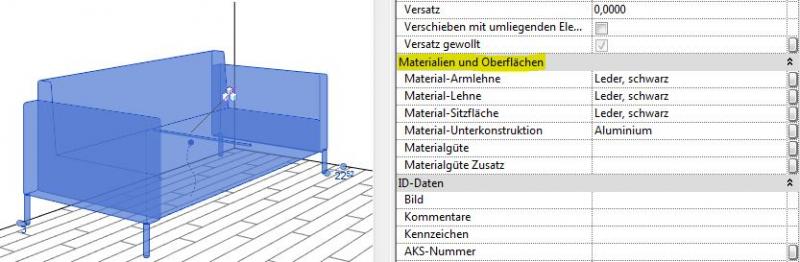
During this phase, furniture details are supplemented with information provided by the manufacturer.
Presentation
Plan view (cross-section)
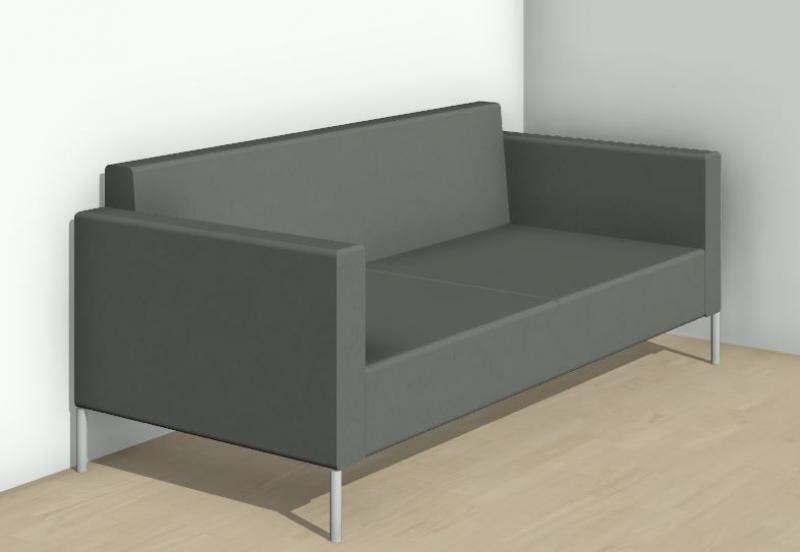
3D model
Features
The following features are also required in this phase:
- Manufacturer information: Manufacturer, product name (product number), dimensions, etc.
Labeling
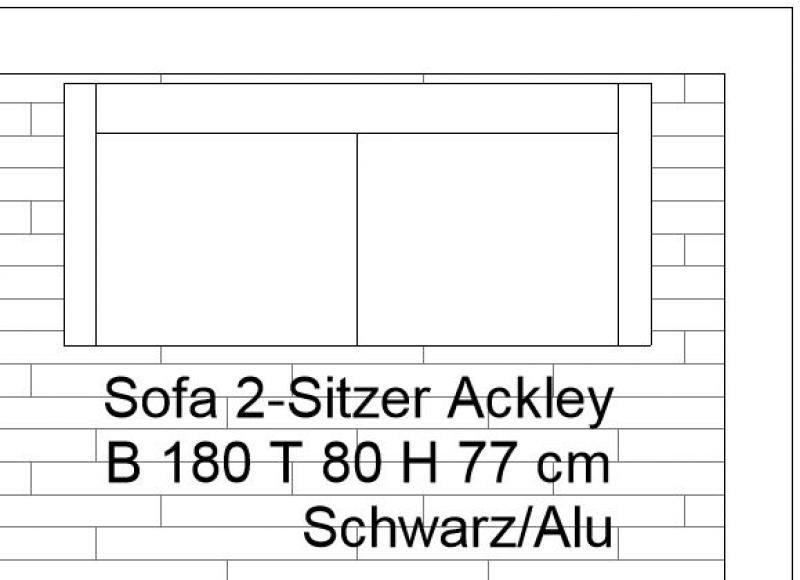
The labeling is created with the appropriate manufacturer information as required.
The relevant information is entered into Revit using standard text. In the following
The following examples illustrate various types of information:
Instructions
These measures primarily concern labeling and are listed in the previous section >Labeling.
The level of detail in furniture design:
When using furniture in BIM models, there are generally four levels of detail:
- Furniture need only be included as placeholders: External, non-reviewed families, BOA families, and families from the Metric Library may be used for this purpose. An external designer will handle the further detailing.
- Furniture must have an explicit plan view (2D symbols) and be included as solid objects (industrial construction, research): For this, the families must be adapted for 2D representation.
- Furniture must additionally be assigned materials (for renderings or approximate quantity takeoffs, e.g., for retail, residential construction): For this, external families may need to be supplemented regarding their surface material assignments, which requires the addition of material parameters.
- Furniture must, as precise technical models, meet the requirements of building owners and/or specific standards and serve as the basis for bills of quantities (e.g., high-end residential construction): To achieve this, all component surfaces in the families must be assigned precise materials that can also be used for high-resolution and realistic renderings. This means that new furniture families must be created for this project using the parameters specified in the BOA list.
Based on this information, the level of detail required for furniture families varies depending on the specific project.
However, it is strongly recommended that you only include detailed renderings of the furniture explicitly required for specific planning or visualization purposes (e.g., interior visualization, model office, etc.), rather than all the furniture in a building.
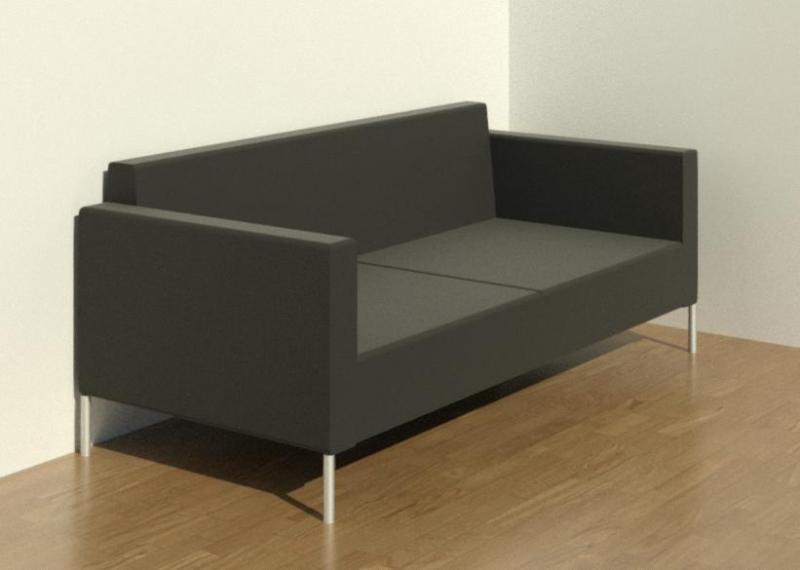
Sample image of a highly detailed and fully developed furniture collection in Revit (rendering):

Unfortunately, this content is available only to our Pro users.
If you'd like to read the full article, try the Pro account or become a Pro user.