

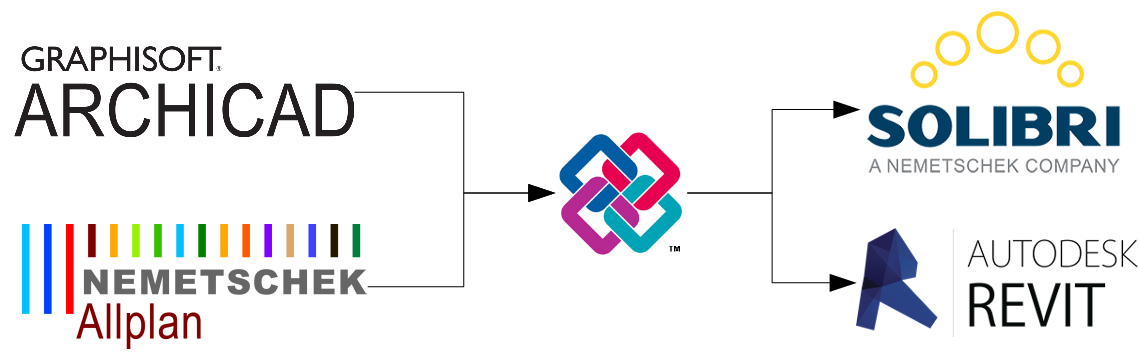
The IFC (Industry Foundation Classes) file format is becoming increasingly important in the so-called Open BIM workflow. It is a software-independent file format that can be read by many authoring tools, thereby enabling the digital exchange of BIM designs.
This article describes how to import IFC formats into Revit, including the associated challenges.
Any tips and tricks, as well as useful information on specific settings, round out the necessary information on this topic.
Keywords: data transfer, communication, handover, translation, integrated planning, interdisciplinary collaboration, software, authoring tool, tool, data format, data exchange, instructions, import/export, Building Information Modeling, modeling
Once models have been exported from other BIM software programs, they can be opened in Revit using the IFC import feature. The IFC classes currently supported by Revit are listed here.
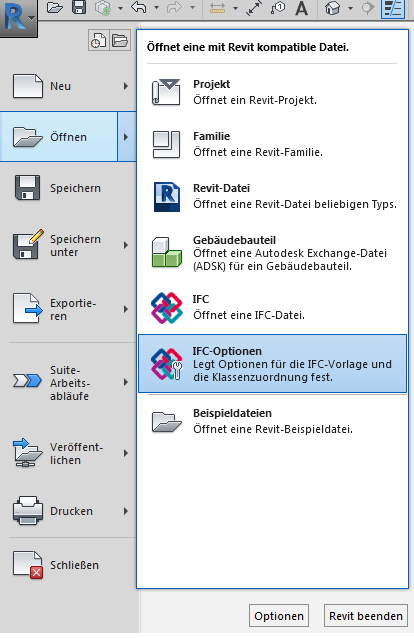
First, create a new Revit project or open an existing one. In the main menu, you can now import a new IFC file and configure the IFC options. IFC opens a new file by default, but the options are only available if a Revit project is already open.
Before opening the IFC file in Revit, you can modify the settings for the imported files. This means that IFC classes (IFC class name) can be mapped to specific Revit categories (Revit category).
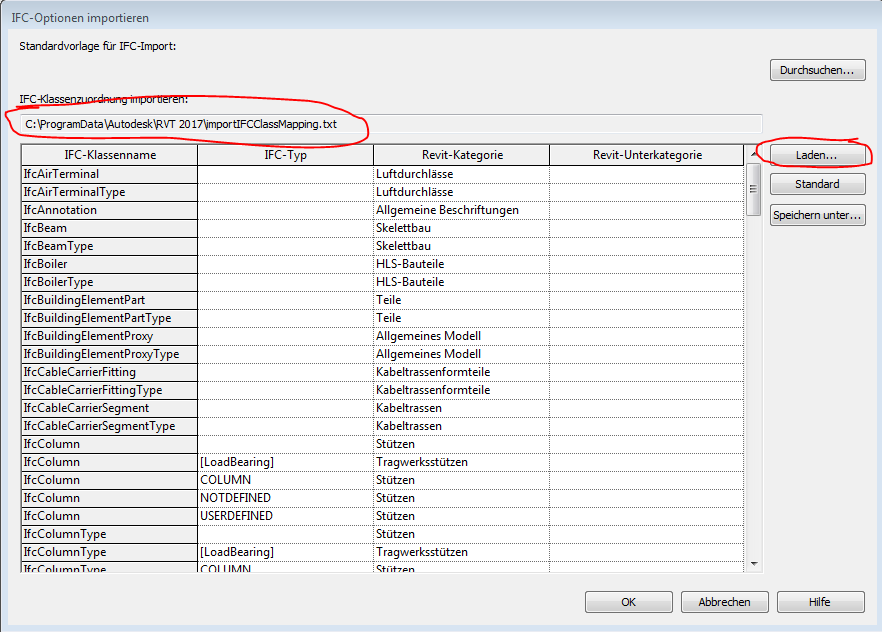
Before you begin overwriting the Revit categories mapped to the IFC categories, you should check the mapping file you are using. A more up-to-date version of the mapping file may already exist. If so, you should use that version instead. To manually overwrite the content, click on the already selected cells again.
IFC classes not supported by Revit are listed under IfcBuildingElementProxy and IfcBuildingElementProxyType. These elements are imported into Revit under the General Model category. IFC()Type contains specific information that is the same for all instances of this type.
If elements were not assigned the correct Revit category during export, the first step is to open the table and check whether it contains the corresponding IFC class names at all.
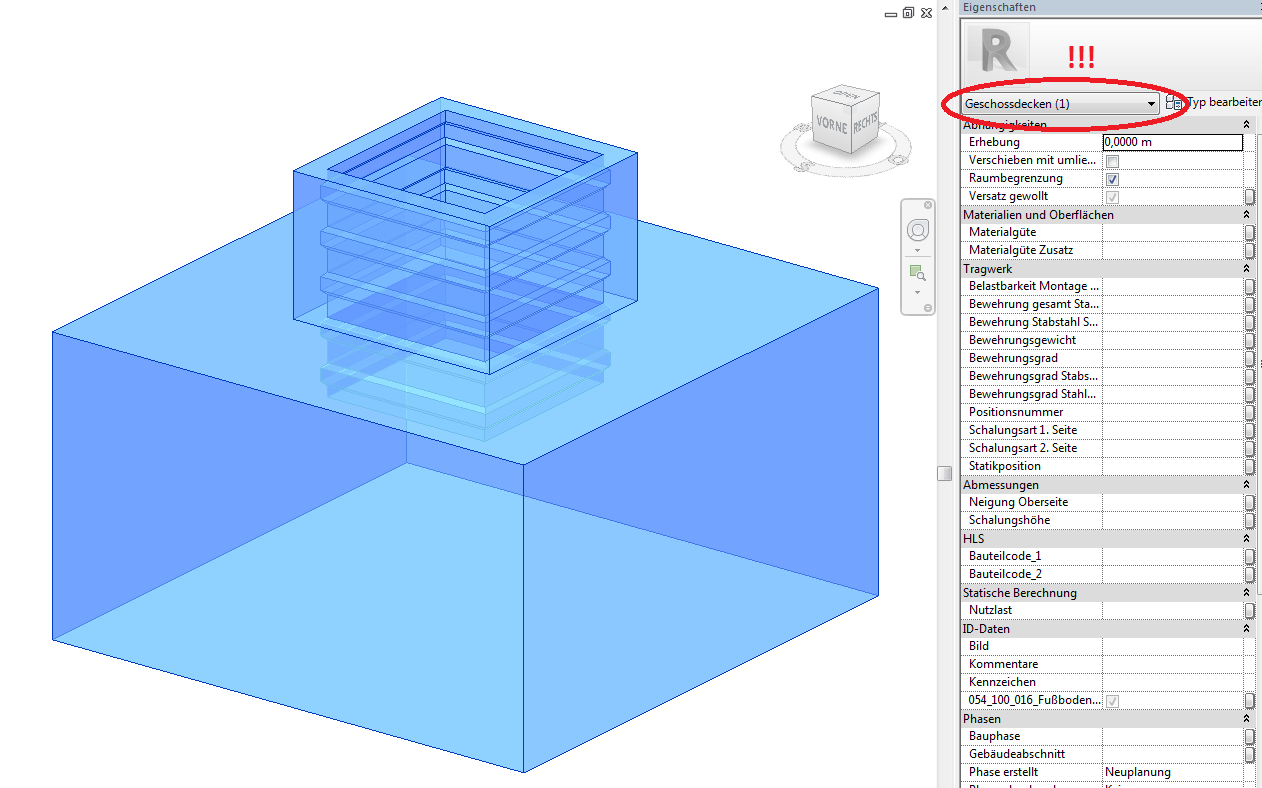
The Revit "Floor Slabs" category corresponds to the Revit "Foundations" category in the IFC options.
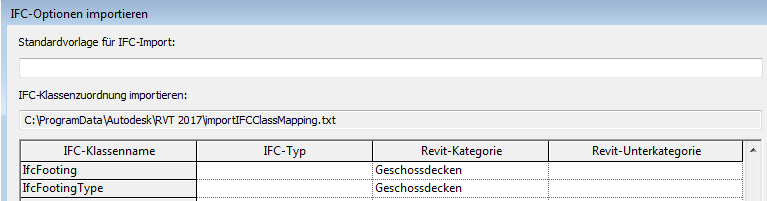
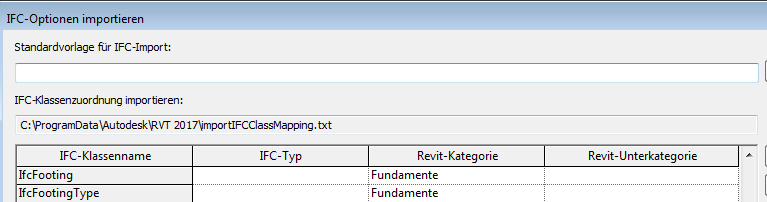
In this example, the assigned Revit category was manually corrected within the IFC import options; specifically, the "Floor Slabs" category was overwritten with "Foundations." After reloading the IFC file, the correct category is assigned. Here, too, click on the cells that have already been selected to overwrite the content.
If the correct Revit category has still not been assigned to the elements, or if the elements are missing entirely, the problem lies with the export. In this case, you should check the IFC export settings in the IFC Options in the main menu again.
In the following example, simple frames consisting of steel beams and reinforced concrete columns are to be imported; these are missing after the import.
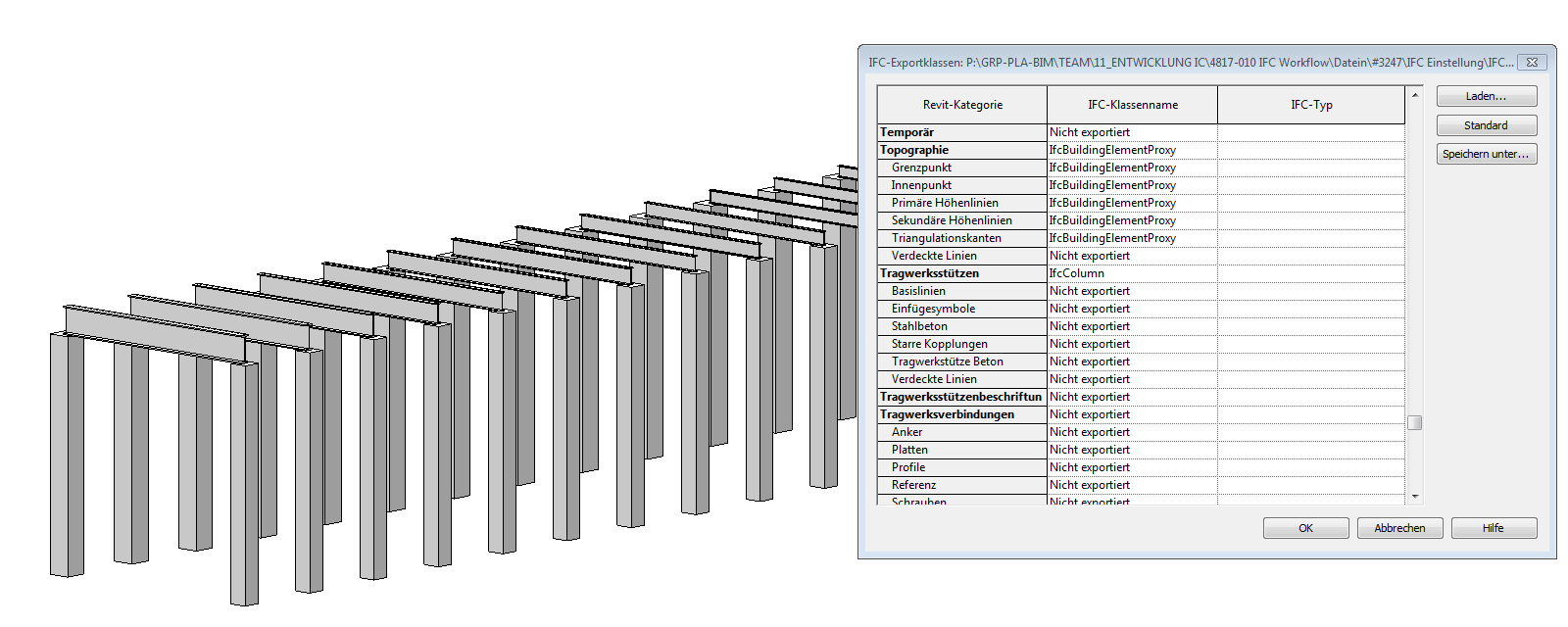
The import mapping has assigned the correct category, so the export mapping needs to be modified.
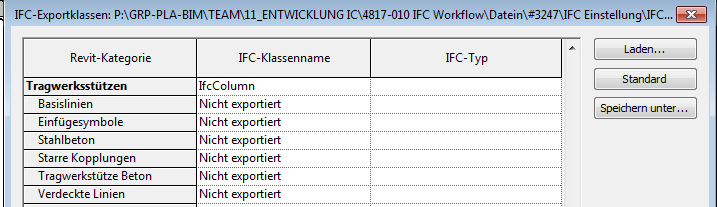
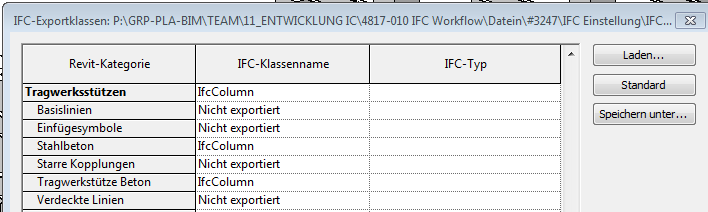
Once the export mapping has been changed or the specific structural columns have been assigned an IFC category, the entire structure will be imported without errors.
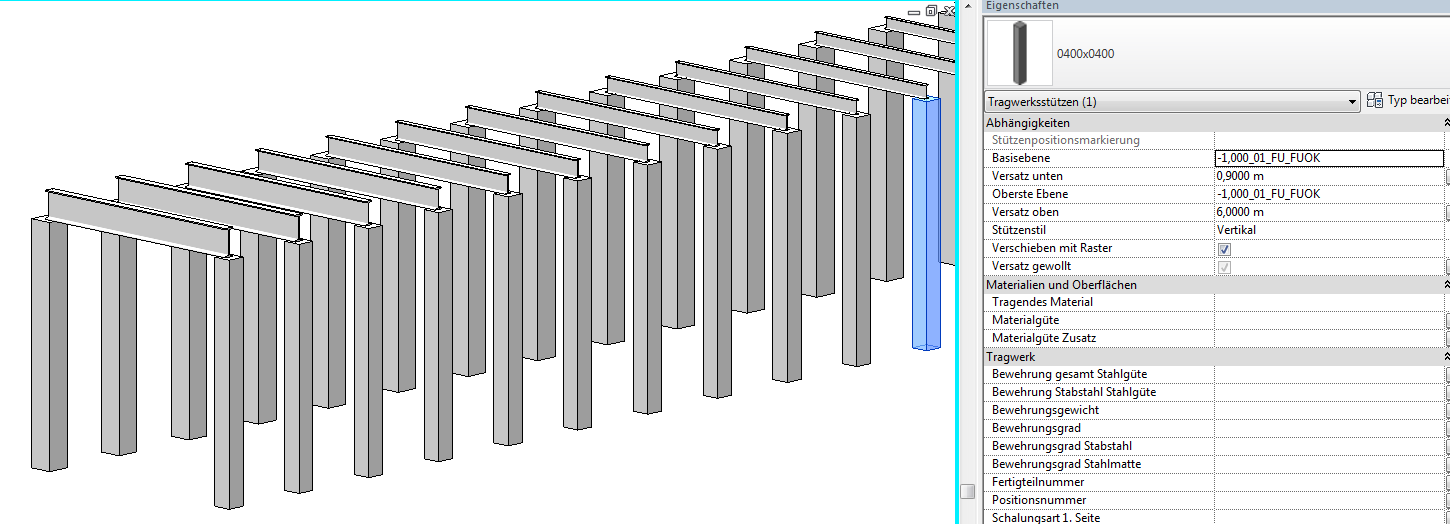
Note: The appearance of the export mapping window depends on the authoring software (Archicad, Revit, etc.). The workflow remains the same.
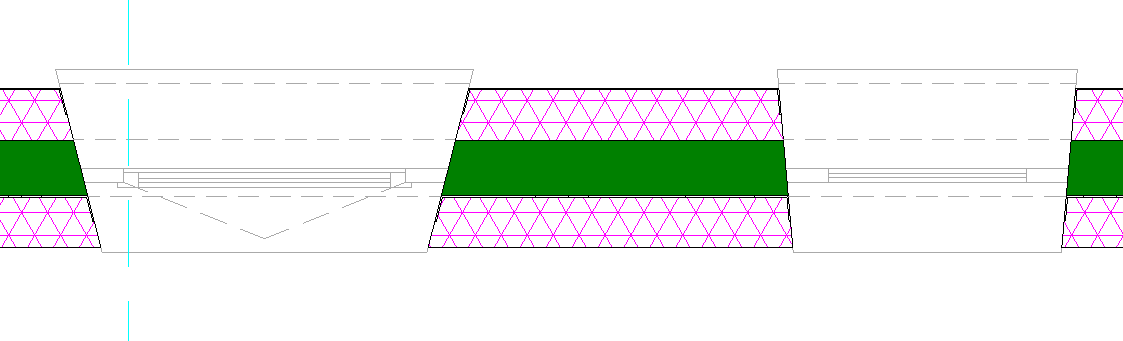
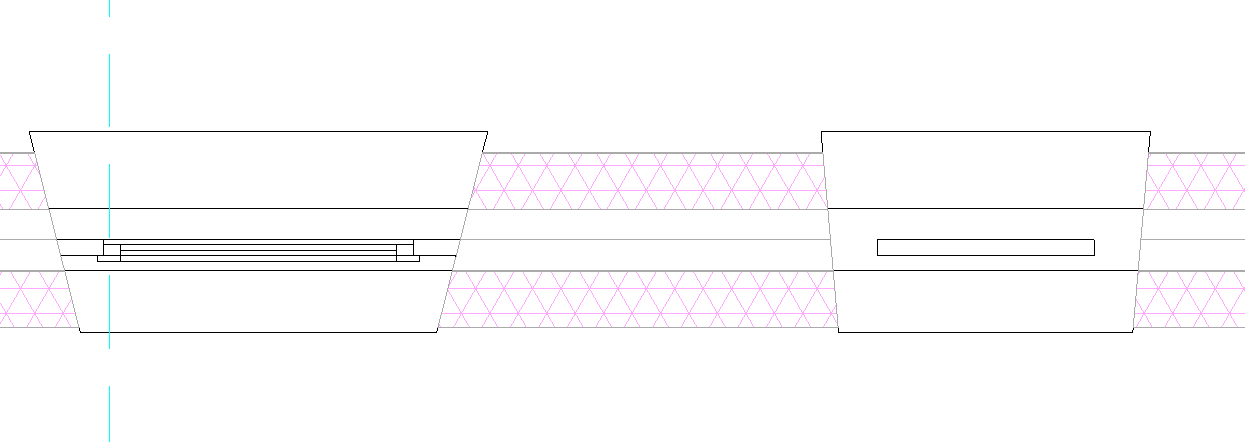
Another issue with exporting is that geometrically complex or highly detailed elements often lack the original detailing that was assigned to them in Revit prior to export.
Before exporting:
After exporting:
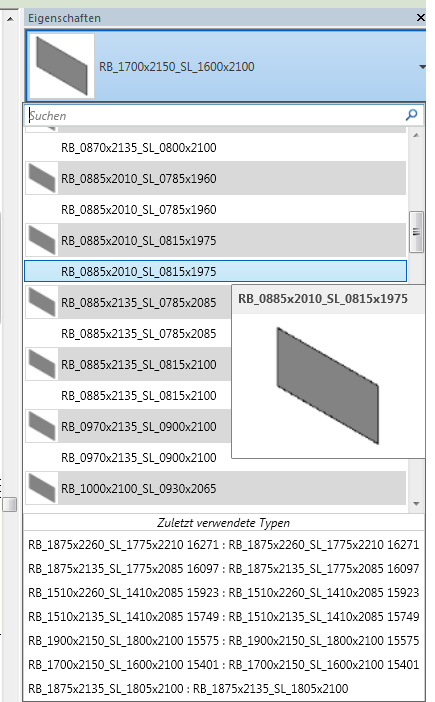
It is also possible for family types to be omitted, or they may be presented as separate families.
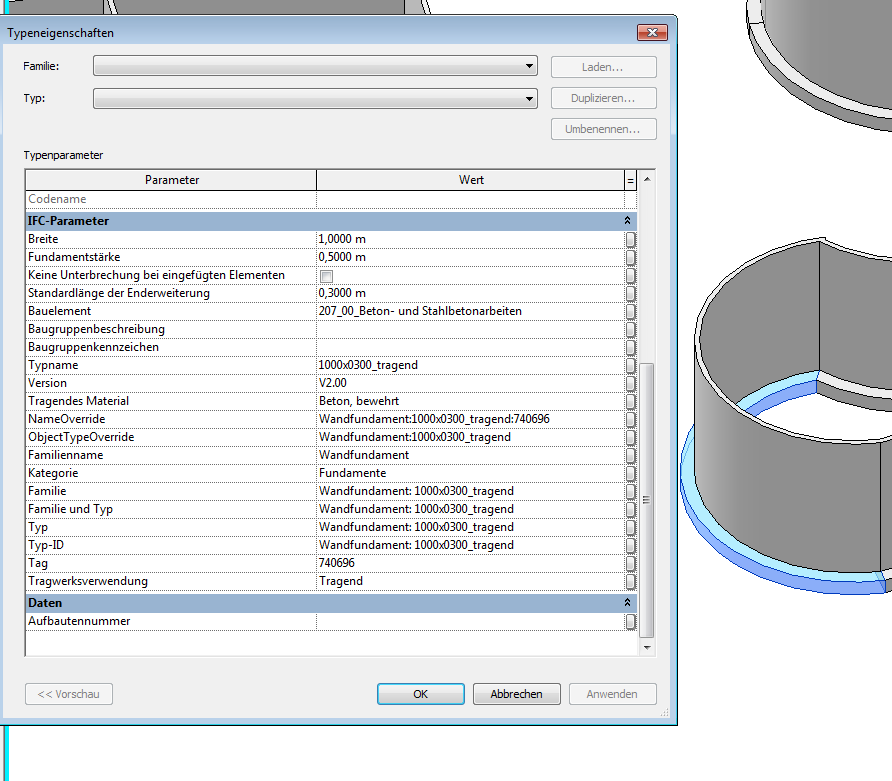
After importing, the elements are assigned their IFC parameters. The parameter values that were assigned to them before exporting can be found in the type properties under IFC Parameters.

Unfortunately, this content is available only to our Pro users.
If you'd like to read the full article, try the Pro account or become a Pro user.