
Data transfer from architecture to structural engineering can be made much easier with the right settings in ARCHICAD. Whether you plan to use 2D-based workflows with DWG data or 3D-supported processes using the IFC data format: With a little preparation, data transfer to structural engineering can be done quickly and easily—your consultants will be thrilled!
In this video tutorial, you’ll learn in just a few quick steps how to optimally prepare your model in ARCHICAD for export to structural engineering, so you’ll have a one-click solution ready to use throughout the project.
For more in-depth information on data export from ARCHICAD, please refer to the following articles:
Search terms:
File format, collaboration, data import, data export, transfer, mapping, parameter mapping, assignment, interdisciplinary, authoring tools, software, data format, processing
Topics in the video
- Level filtering
- Isolate core
- Set up multi-layer parts
- Set up complex profiles
- 3D filtering
- Save section
Video tutorial
(You'll need speakers or headphones)
To load this content, you need to allow the YouTube service.
With its Structural Engineering discipline, ArchiCAD enables seamless collaboration using the Structural-Analytical format. This file format is already well-known among structural engineers. It is a model based on a network of nodes, where standard three-dimensional elements are represented as simplified one- or two-dimensional representations so that structural engineers can analyze the model from a structural perspective using their specialized software.
A structural analysis model is generated in the background based on the physical (architectural) model in ArchiCAD. Open the view of the structural analysis model using the following options:
Select the menu item: View | Structural Analysis Model
Select this icon from the tab bar:

This model view displays the 1D and 2D components of the model elements. Columns and beams are displayed as one-dimensional components, while walls, floors, and roofs are displayed as two-dimensional components. Nodes are displayed at the endpoints and corner points of the elements.
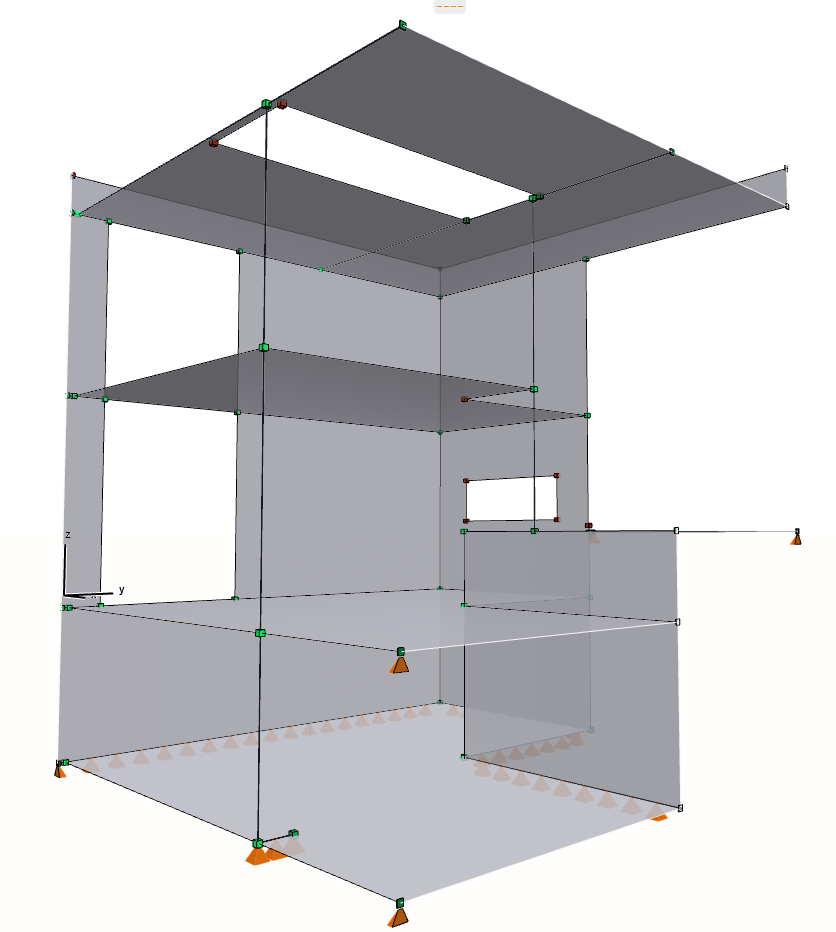
You can easily overlay the structural analysis model and the physical model with a single command to better understand the concept and the relationships between them.
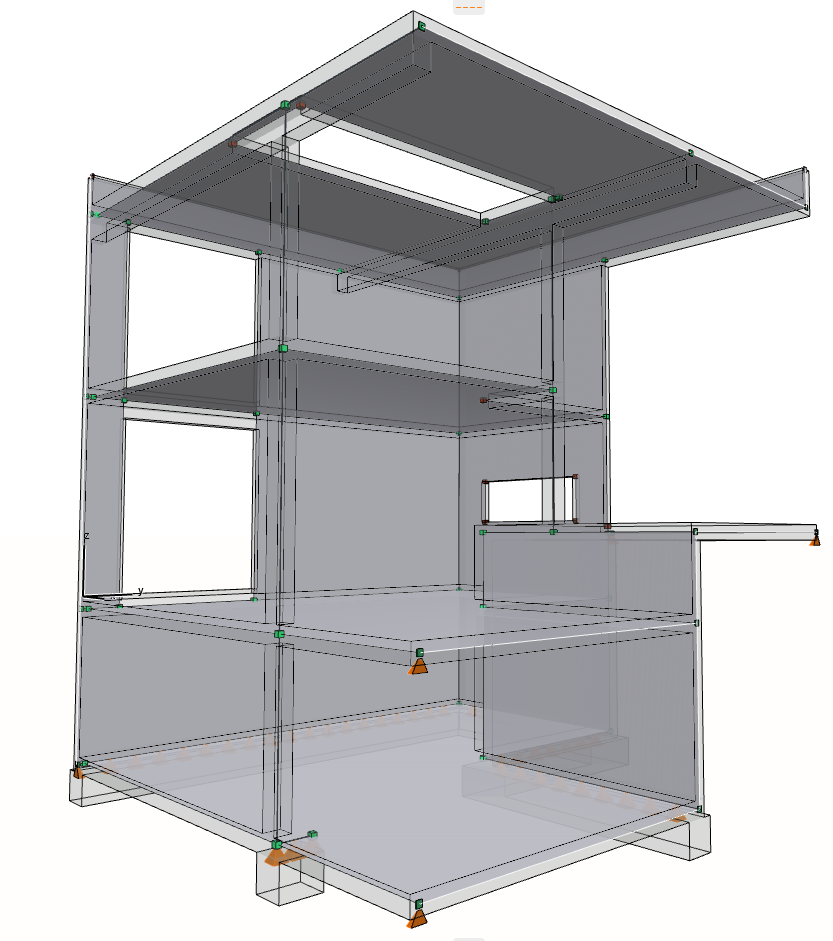
If the structural members are connected, the nodes are colored green; otherwise, they are red. In order for structural engineers to check the model in their analysis software, they need a connected model. The nodes should all be green if possible. The components of the structural analysis model are located at the center of gravity of the columns/beams or at the center of the core of walls and floors, which is why the mesh structure is initially displayed incorrectly. You can manually adjust the position of the components in the settings or change them globally using rule-based and automated commands. The rule sets can be found under the following menu item: Design\\Structural Design\\Creation Rules for the Structural Analysis Model
In this dialog box, you can define the global rules for connecting 1D and 2D components.
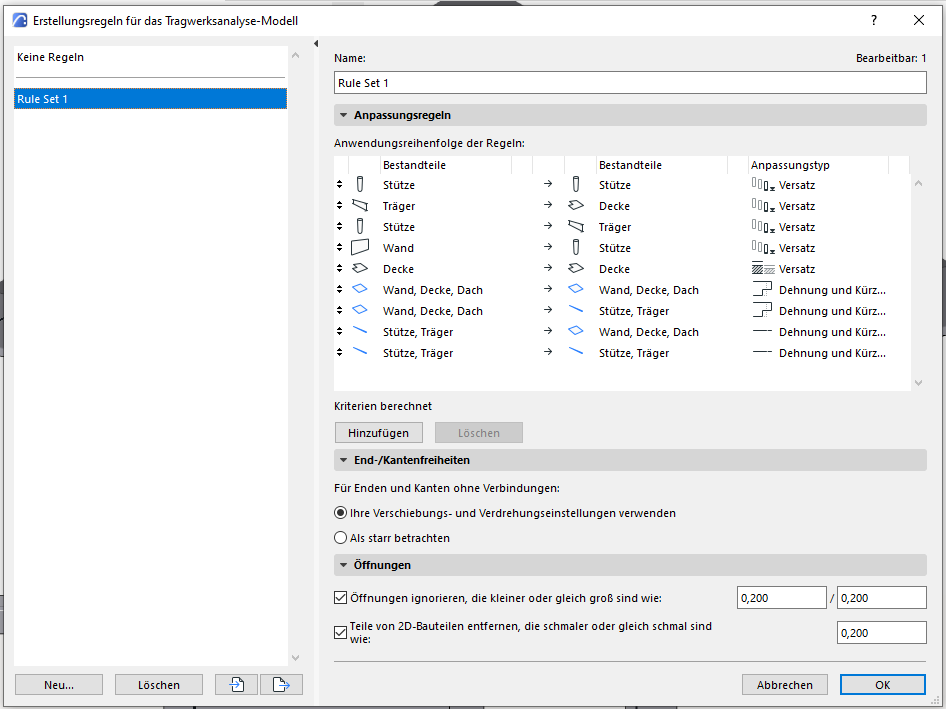
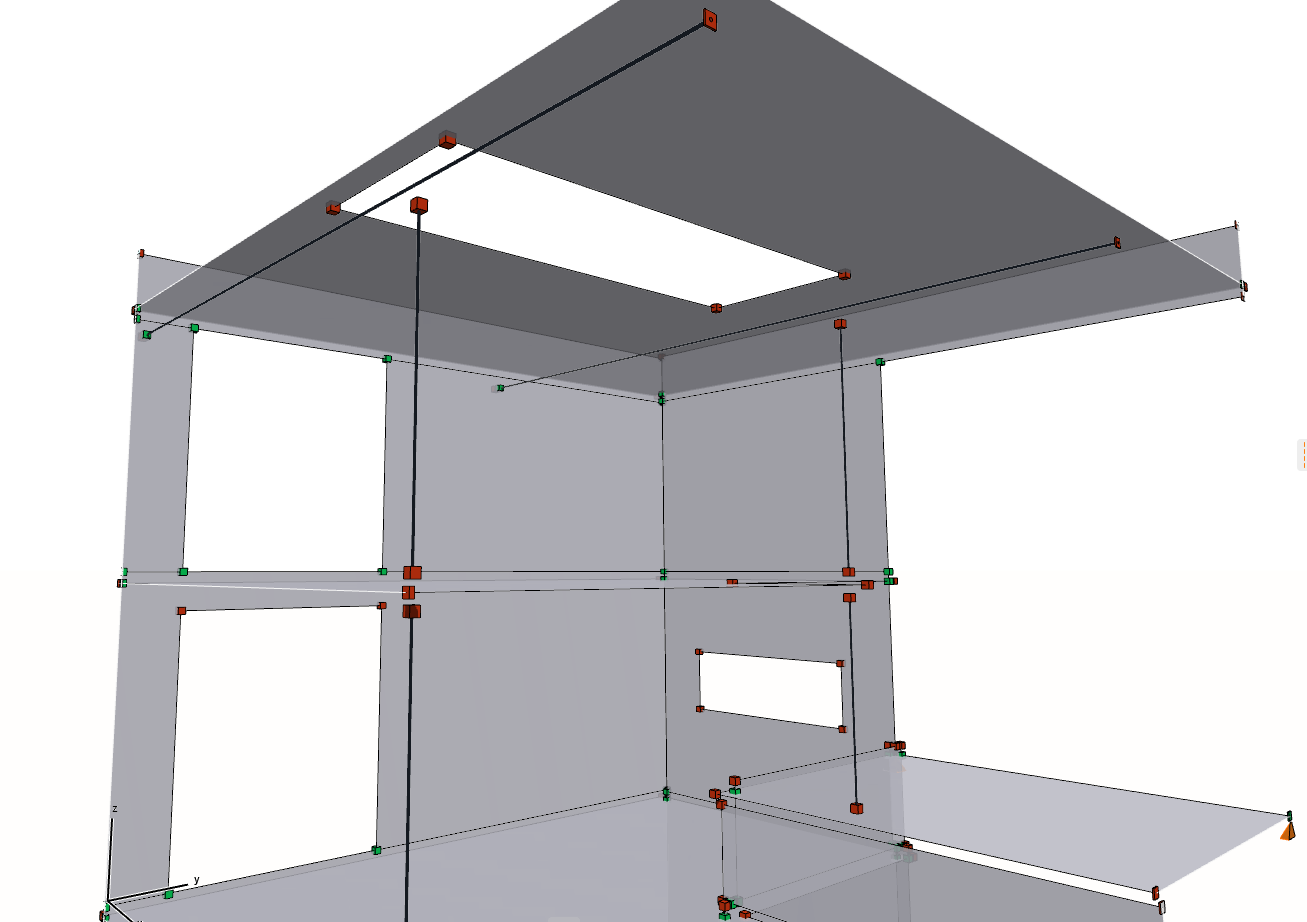
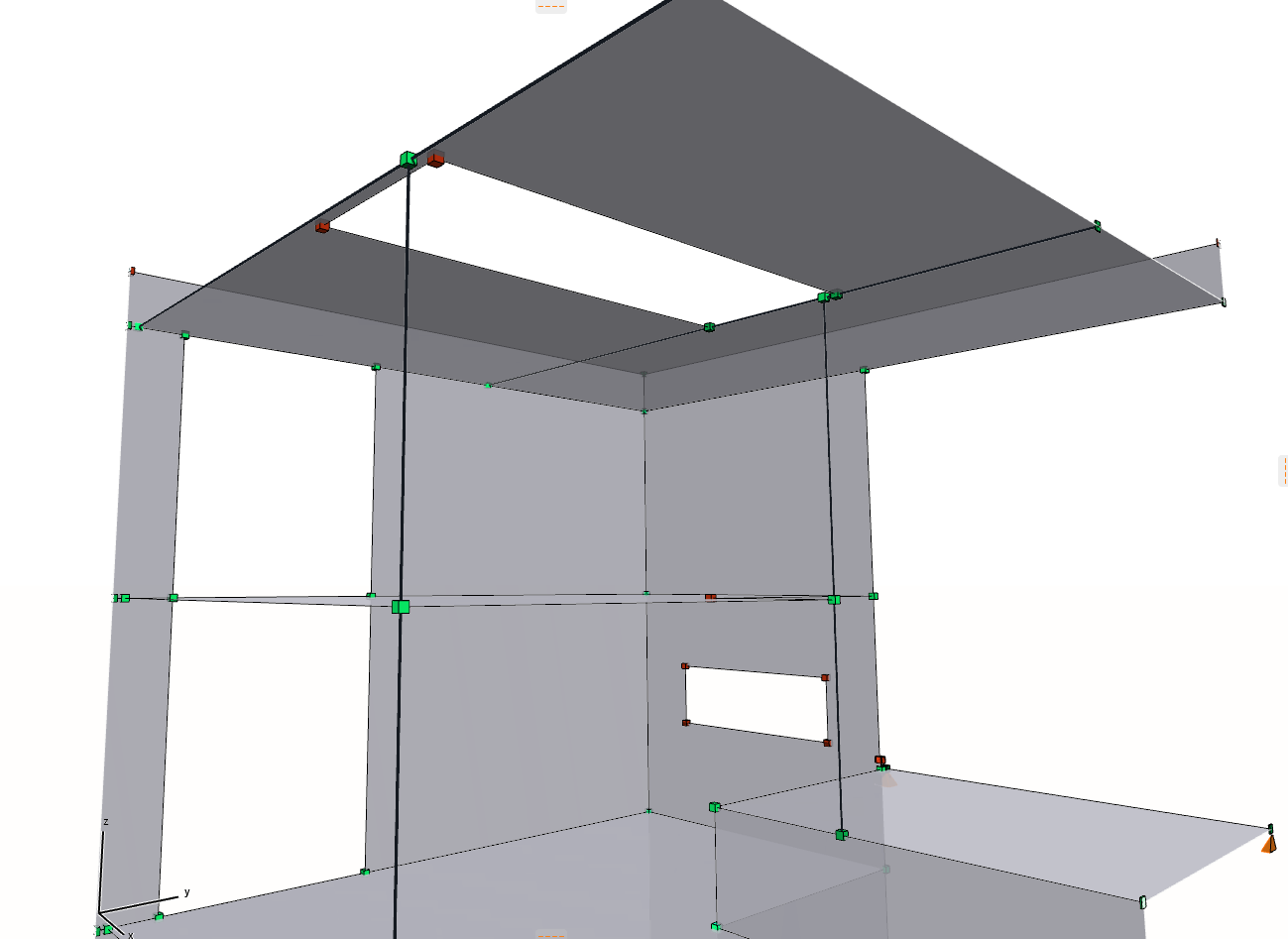
If necessary, you can create your own structural connections to expand and complete the structure. For example, you can create additional structural supports for the foundation.
Here's what an ideal workflow might look like.
- The architecture creates a physical model.
- The structural engineering team joins the current file in a collaborative environment to create the structural analysis model. They review the nodes and generate the creation rules.
- Once the model is ready, the structural analysis model is exported, opened in the structural analysis software, and further processed. The structural analysis team applies the various loads to the mesh model. When the model has been processed, it is saved and imported into ArchiCAD.
- During the import process, the changes and loads are transferred to the structural analysis model. You can verify the data using ArchiCAD’s model comparison feature before importing. If changes are made to the architectural model, the loads are automatically updated.
You can find the rule sets we have created in the following file. Import the file into the rule creation dialog box.
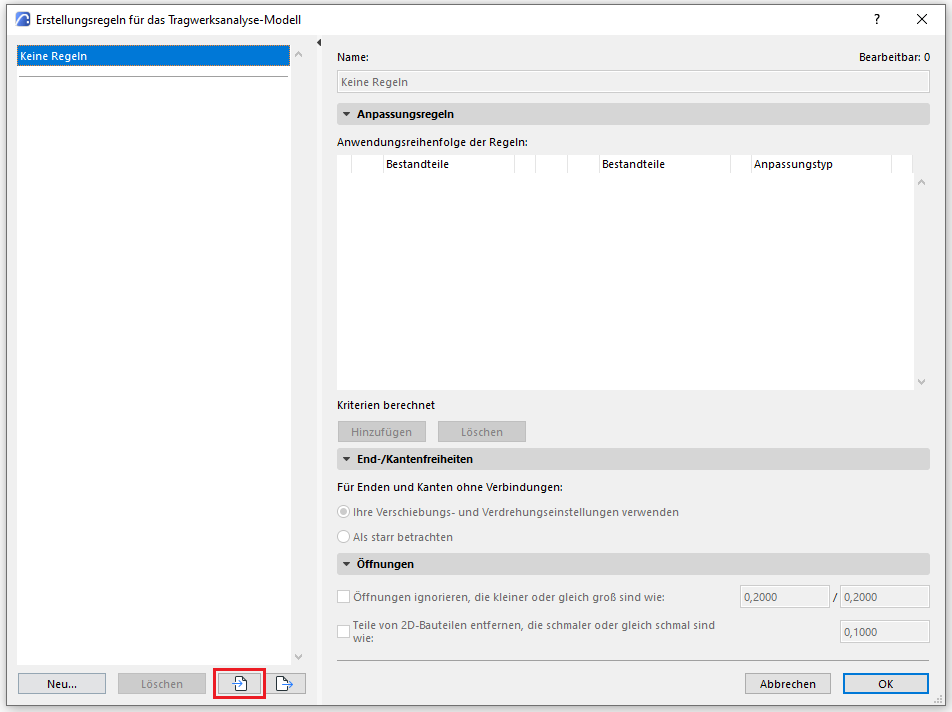
Here you will find a selection of helpful videos on how to use the structural analysis model.
Structural analysis model
Display of the structural analysis model in Archicad
To load this content, you need to allow the YouTube service.
Structural analysis model in Archicad
To load this content, you need to allow the YouTube service.
Structural Model Standard Formulas
To load this content, you need to allow the YouTube service.
The SAF Interface
Using the SAF Interface
To load this content, you need to allow the YouTube service.
Archicad SAF Cross-Sections and Materials
To load this content, you need to allow the YouTube service.
Archicad, SAF, and RFEM
To load this content, you need to allow the YouTube service.
Archicad to FEM-Design SAF (English)
To load this content, you need to allow the YouTube service.