
The "View Filter by Plan" add-in allows you to automatically create and apply view filters in views, ensuring that only relevant section lines are visible on plans. This ensures a technically accurate representation and improves clarity.
To load this content, you need to allow the YouTube service.
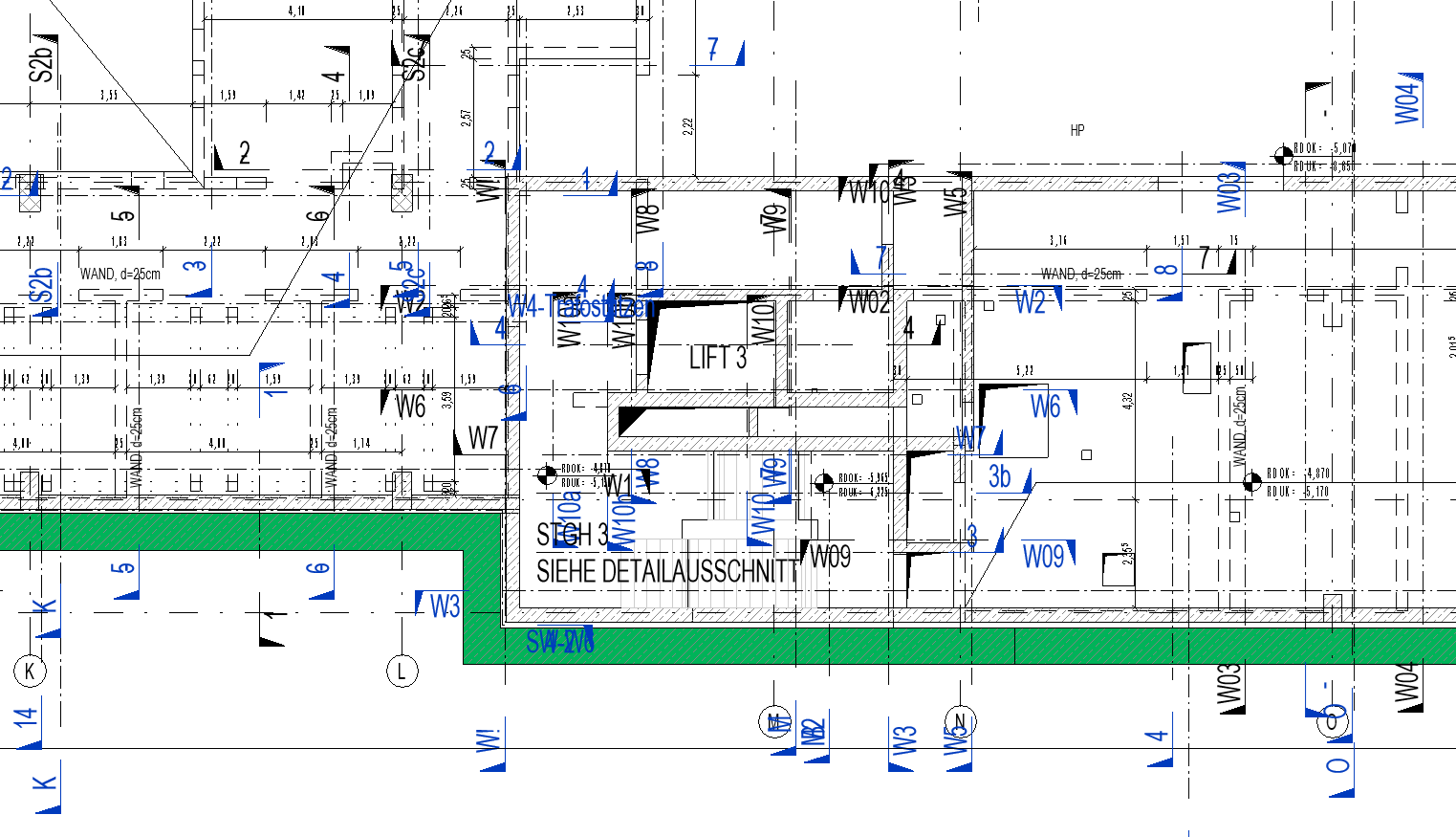
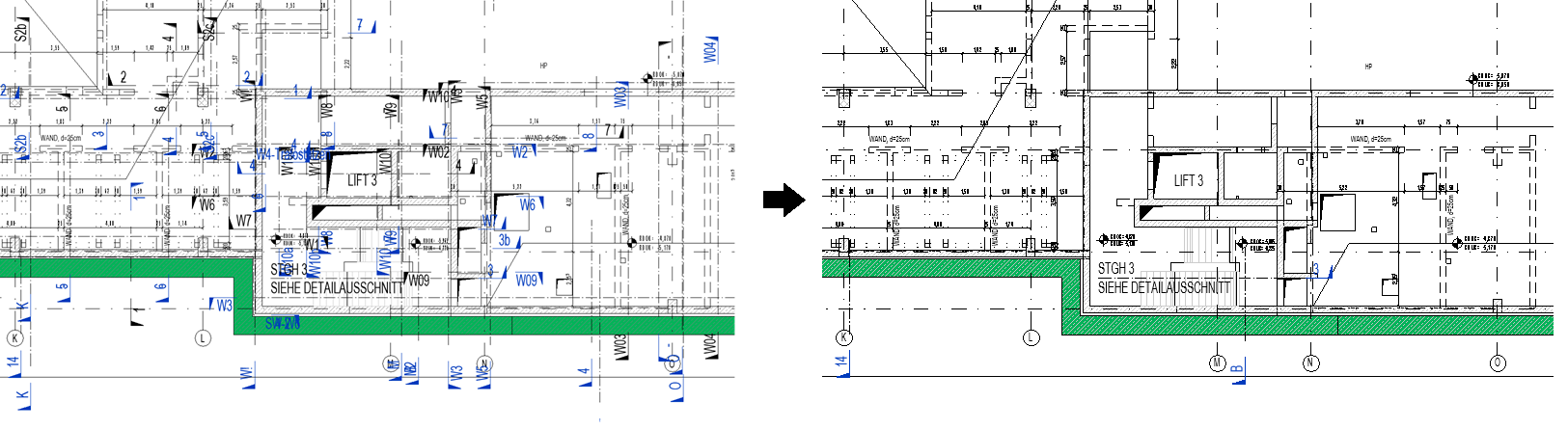
- Clear layout of the drawings: Only relevant cross-sections and detail views are visible
- Automation saves time and eliminates manual filtering
- Standardized filter naming ensures consistent workflows
- Consistency among all project participants
- Improved readability and higher quality of the final drawings
With this add-in, you can:
- Automatically generate view filters for section lines
- Apply these filters based on the drawing parameter "Drawing Number"
- Automatically hide irrelevant view representations
- Generate filters with standardized names (e.g., “View_View_Name does not contain A104”)
Filter logic:
The tool automatically checks whether a suitable filter is already present in the model.
- If the filter does not exist, it will be created and applied.
- If the filter already exists, it is applied directly to the selected views.
The name of the filter created follows this format: View_View_Name does not include [Plan_Number]
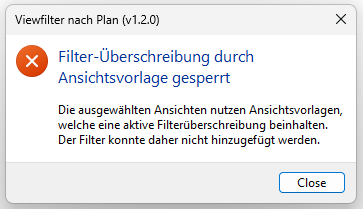
Note: If filter overrides are disabled in the view template, you will receive a warning, and the filter will not be added to this view.
How the filter works:
The filter is based on the view parameter "View Name" and the plan parameter "Plan Number".
The following categories are filtered:
- Sections
- Views
- Detailed sections
These elements are hidden if they are not part of the current plan.
Example of filter naming:
Plan number: A104
Filter name: View_View_Name does not contain A104


This filter hides all section lines and detail views whose view name does not contain "A104".
Apply filter
- Open a plan view that contains at least one placed view.
- Select the desired views on the plan.
- Click the "View Filter by Plan" button.

- The filter is created and added to the selected views.
1.4.0.0
- Revit versions 2026.0 through 2026.4 are now supported.
- Pressing F1 opens the BIMpedia article (tooltip).
1.4.1.0
- The Revit button has been renamed to "Filter by Plan".
The add-in is designed to work with Plandata's Revit Pro Content: plan and view nomenclature conforms to the Plandata BOA standard.
This add-in specifically relies on view names containing the plan number of the plan on which they are placed. Ideally, view names in the model should be automatically generated and kept up to date by another add-in.
If you attempt to add a filter to a view whose view template contains an included filter override, the following warning will appear.
If you have any problems or questions, or if you have any ideas or suggestions, please feel free to contact our customer service team. We look forward to hearing your suggestions for improvement.