
When analyzing, reviewing, or presenting models, elements often need to be color-coded based on specific characteristics—such as usage, system, component type, or identification.
Creating multiple view filters manually, including setting colors, is time-consuming, prone to errors, and often has to be redone when parameter values change.
- Automatic creation of multiple view filters in a single step
- Clear, color-coded visualization of parameter values
- Consistent display without manual color selection
- Significant time savings in model analysis and verification
- Direct application of filters to the active view
The user interface includes several input fields. Let's take a closer look at them.
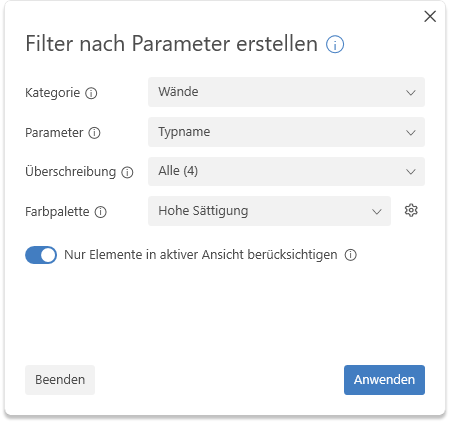
- Category:
The category whose elements are to be included. - Parameter:
The parameter whose values are to be used for creating view filters. Only text parameters are listed for which at least one element has a value. - Color palette:
Select the desired color palette. By default, two color palettes are available, each with 40 colors. If more than 40 filters are created, the color palette repeats.
High saturation Low saturation
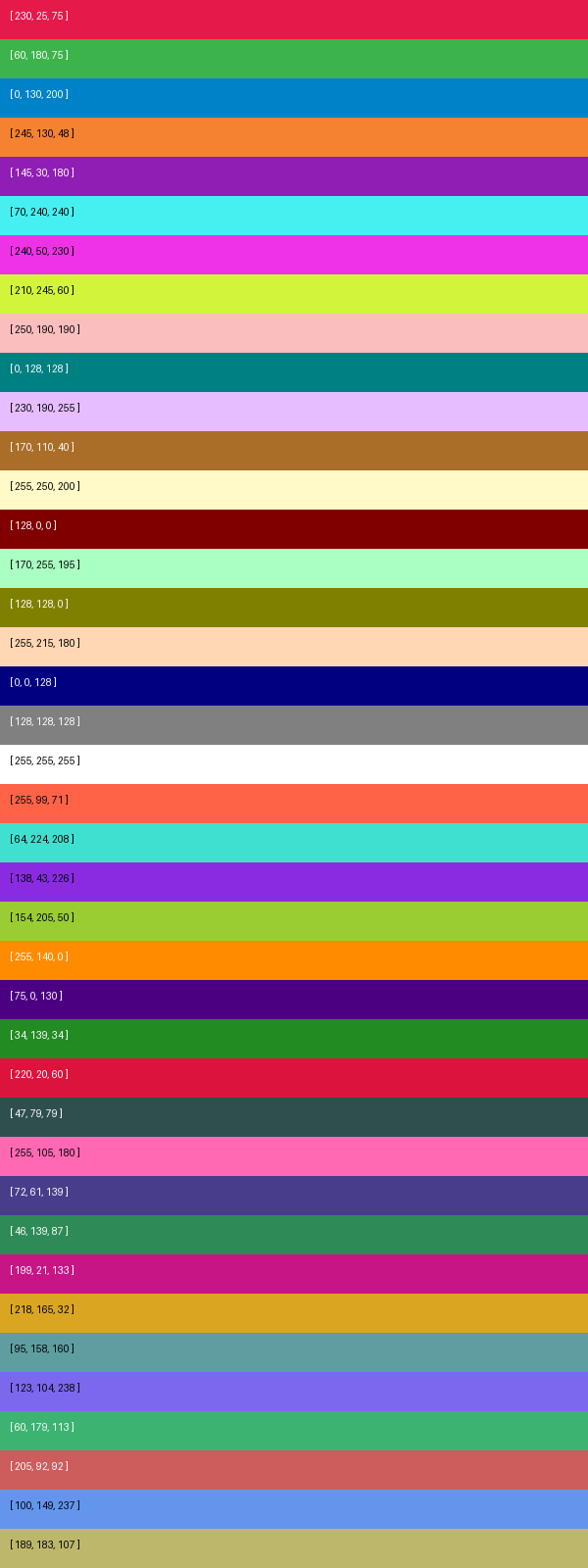
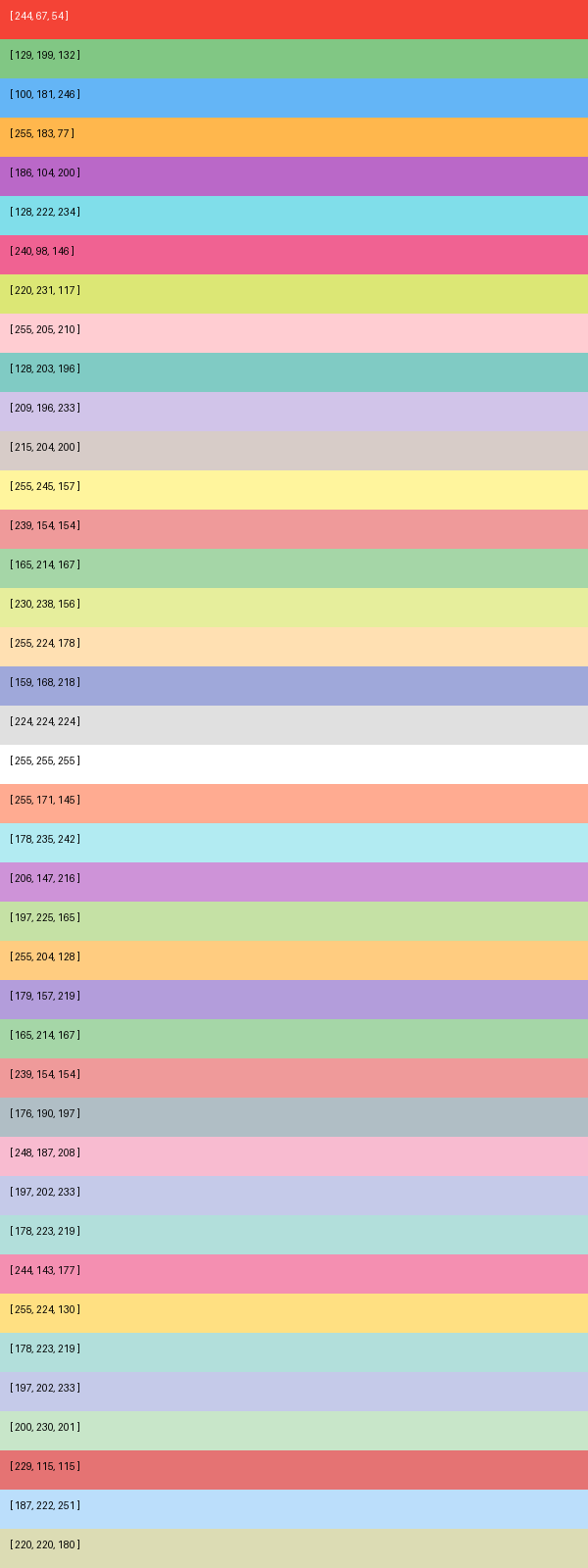
If you want to use your own color palette file, click the gear icon and select the desired file.

By default, all elements in the model are included. Use this switch to limit the selection to elements in the active view.
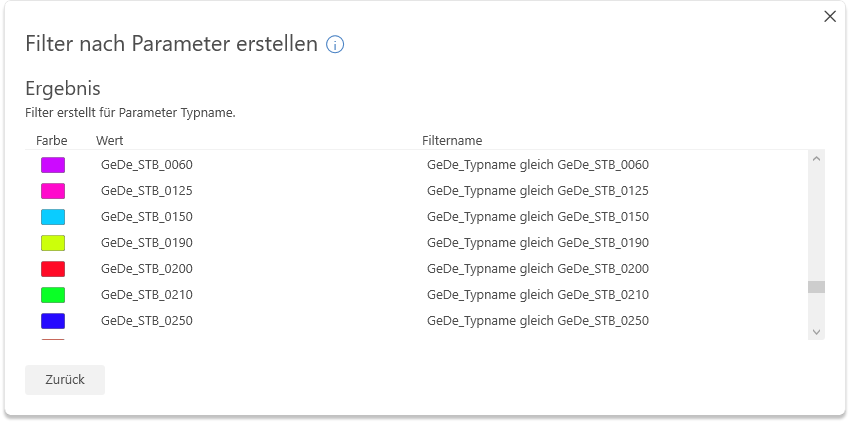
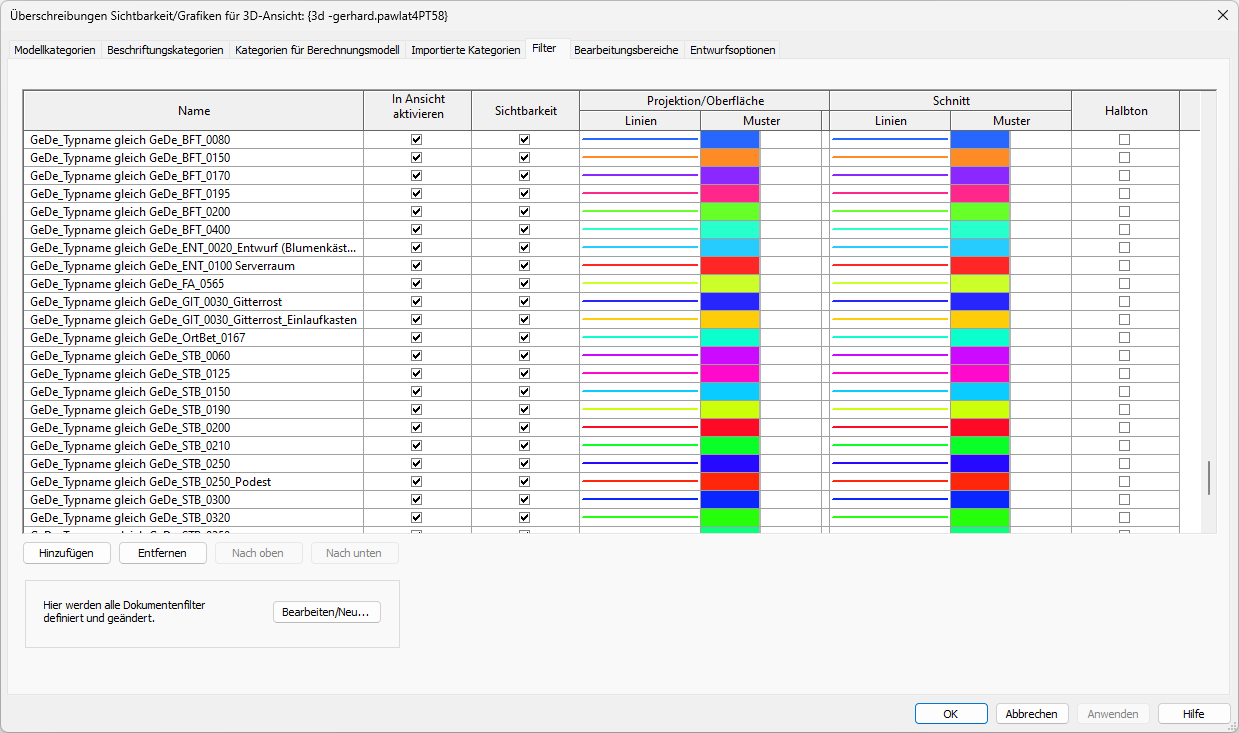
Clicking the "Apply" button starts the process. The filters are now created and applied to the active view. The created filters are displayed in the user interface.
- 1.0.0.0
Initial release for Revit 2022–2026
If you have any problems or questions, or if you have any ideas or suggestions, please feel free to contact our customer service team. We look forward to hearing your suggestions for improvement!

Unfortunately, this content is available only to our Pro users.
If you'd like to read the full article, try the Pro account or become a Pro user.