

This Revit add-in automatically determines the number of components assigned to rooms and writes the total directly to a defined room parameter. This ensures that up-to-date and consistent room data is always available.
To load this content, you need to allow the YouTube service.
Counting elements by room often requires manual counting or time-consuming analysis. This process is not only time-consuming but also prone to errors. Since BIM models are constantly changing, these counts must be repeated over and over again.

- No more manual counting of elements.
- Automatic, reproducible evaluation per room.
- Direct saving of results in room parameters.
- Easy updating after model changes.
- Flexible filtering options for precise evaluations.
Room assignment
Room assignment is based on a parameter of the elements that must contain a room number. The parameter value is compared with the existing room numbers. The desired parameter is specified by your company when installing the Revit add-in.
Note: The spatial geometry and the position of the elements are not taken into account. The assignment is based solely on parameters.
Count by selection
The user interface provides several input fields that allow you to control the counting process precisely. Let's take a closer look at them.
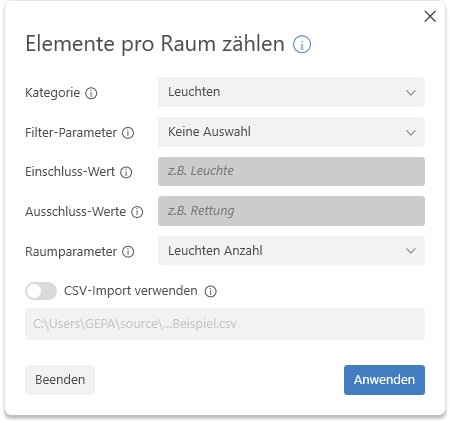
- Category:
The category whose elements are to be counted. - Filter parameter (optional):
An optional parameter whose value can be searched to further filter the elements. Only text parameters that have a value for at least one element in the active category are available for selection. - Inclusion value (optional):
Optional search term for the filter parameter. Only elements that contain the term in the parameter value will be counted. - Exclusion value (optional):
Optional exclusion value for the filter parameter. Elements that contain the term in the parameter value are not counted. If you want to use multiple exclusion terms, separate them with semicolons ("Rescue;Safety;SiBel") - Room Parameter:
Target parameter of rooms to which the sum of the found elements is written. Only numeric parameters are available for selection.
Clicking the "Apply" button starts the counting process. Elements from both the active and linked models are now counted. The result is then displayed.
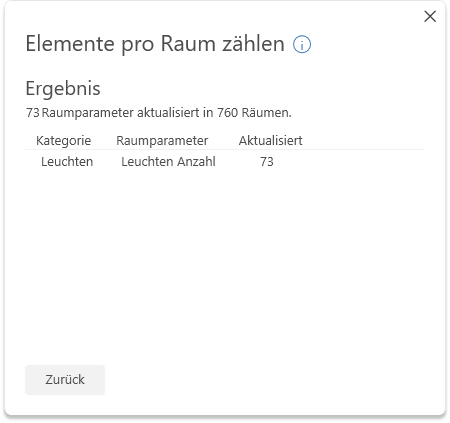
Counting based on the CSV file
Check the "Use CSV Import" box to run multiple predefined counting tasks. Click the file path to select a CSV file. The input fields above are grayed out in this mode and will not be taken into account.
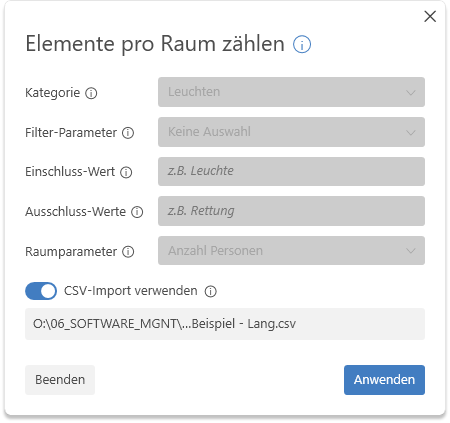
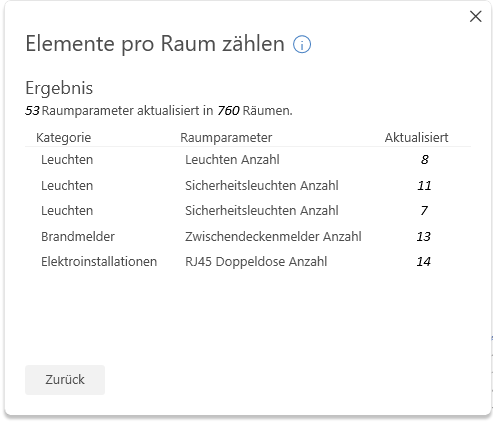
A sample CSV file is loaded by default. You can use this file as a template for your own counting tasks. The example illustrates which 5 column headings must be present in row 1 of the file. Below that, there can be any number of rows containing count operations.
| Category | FilterParameter | FilterValue | ExclusionValues | TargetParameter |
| Lights | Description | Light | Rescue | Number of lights |
| Lights | Description | SiBel | Safety lights Quantity | |
| Lights | Description | Safety | Number of emergency lights | |
| Fire alarms | Description | Suspended ceiling | Suspended ceiling detectors Quantity | |
| Electrical installations | Description | 2-gang | RJ45 dual outlet Quantity |
- 1.0.0.0
Initial release for Revit 2022–2026
If you have any problems or questions, or if you have ideas or suggestions, please feel free to contact our customer service team. We look forward to hearing your suggestions for improvement!